KUOWEIHUD
Installation Guide: H4 Heads-Up Display (HUD)
Thank you for purchasing the H4 HUD. This guide is designed to help you install your new Heads-Up Display quickly, safely, and correctly. Please read through all instructions before beginning the installation to ensure optimal performance and safety.
How to Install
- Before installation, please drive your car to outdoor places, and open your car window -
-

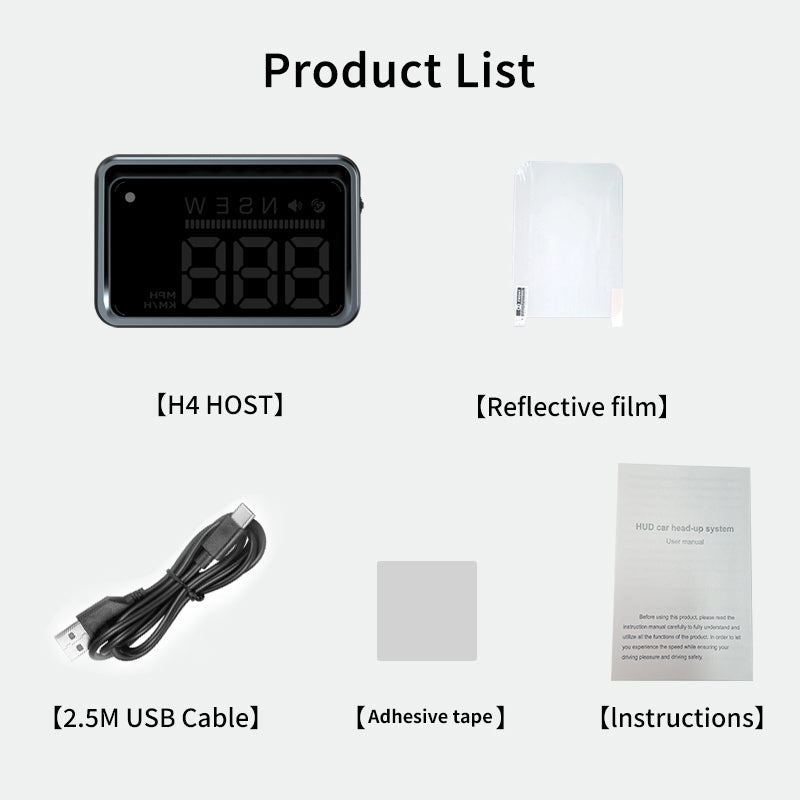
1. Connect the provided cable into the HUD.
-

2. Plug the provided USB cable into your car's USB power port or a cigarette lighter USB adapter.
-

3. Place the HUD on your dashboard, stick the reflective film on your car windshield glass.


System Settings
1. In the normal working state of HUD, Long-press the button to enter into the settings interface;
2. Scroll Up/Down the button to select your desired function setting, there are 4 function settings for you to choose;
- F-1. Speed Alarm ON/OFF (Default 1: ON)
- F-2. Speed Alarm Limit (Default Value:120KM/H)
- F-3. Brightness (Default: 0, Automatic Brightness)
- F-4. Speed Calibration (Default Value: 100)
3. Short press the button to confirm. Scroll Up/ Down the button to adjust the value;
4. Short press the button to save it; Release your hand, it will automatically back to the main interface.
Restore Factory Settings
1. While holding down the 【 Middle 】 button, plug in the USB cable.
2. HUD displays "0" in the middle, let go, factory settings
completed.
FAQ
How to adjust the speed unit?
- Scroll [ Up ] the button for a long time until the speed unit changed, then release your hand.
How to turn on/off the speed alarm sound?
- Long-press the button to enter into setting interface;
- Scroll up/down the button to adjust it to F-1;
- Short-press the button to confirm it;
- Scroll up/down the button to adjust the value(1 is on, 2 is off);
- Short-press the button to save it; Release your hand, it will automatically back to the main interface.
How to adjust the speed alarm limit?
- Long-press the button to enter into setting interface;
- Scroll up/down the button to adjust it to F-2;
- Short-press the button to confirm it;
- Scroll up/down the button to adjust the value(Default is 120km/h).
- Short-press the button to save it; Release your hand, it will automatically back to the main interface.
How to adjust the brightness?
- Long-press the button to enter into setting interface;
- Scroll up/down the button to adjust it to F-3;
- Short-press the button to confirm it;
- Scroll up/down the button to adjust the value(0 is automatic brightness, 1 is the darkest, 2 is middle, 3 is the brightest).
- Short-press the button to save it; Release your hand, it will automatically back to the main interface.
How to calibrate speed?
- Long-press the button to enter into setting interface;
- Scroll up/down the button to adjust it to F-4;
- Short-press the button to confirm it;
- Scroll up/down the button to adjust the value(Default: 100). For example, If the vehicle speed is 100, the HUD shows 103, you can adjust the value to 97; If the vehicle speed is 100, the HUD shows 97, you can adjust the value to 103;
- Short-press the button to save it; Release your hand, it will automatically back to the main interface.
Tired of Looking Down at Your Dashboard?
👇 👇 👇 We’ve Got the Fix 👇 👇 👇

KUOWEIHUD
H4 Heads Up Display Car HUD GPS Speedometer with Speed Alarm MPH KM/H