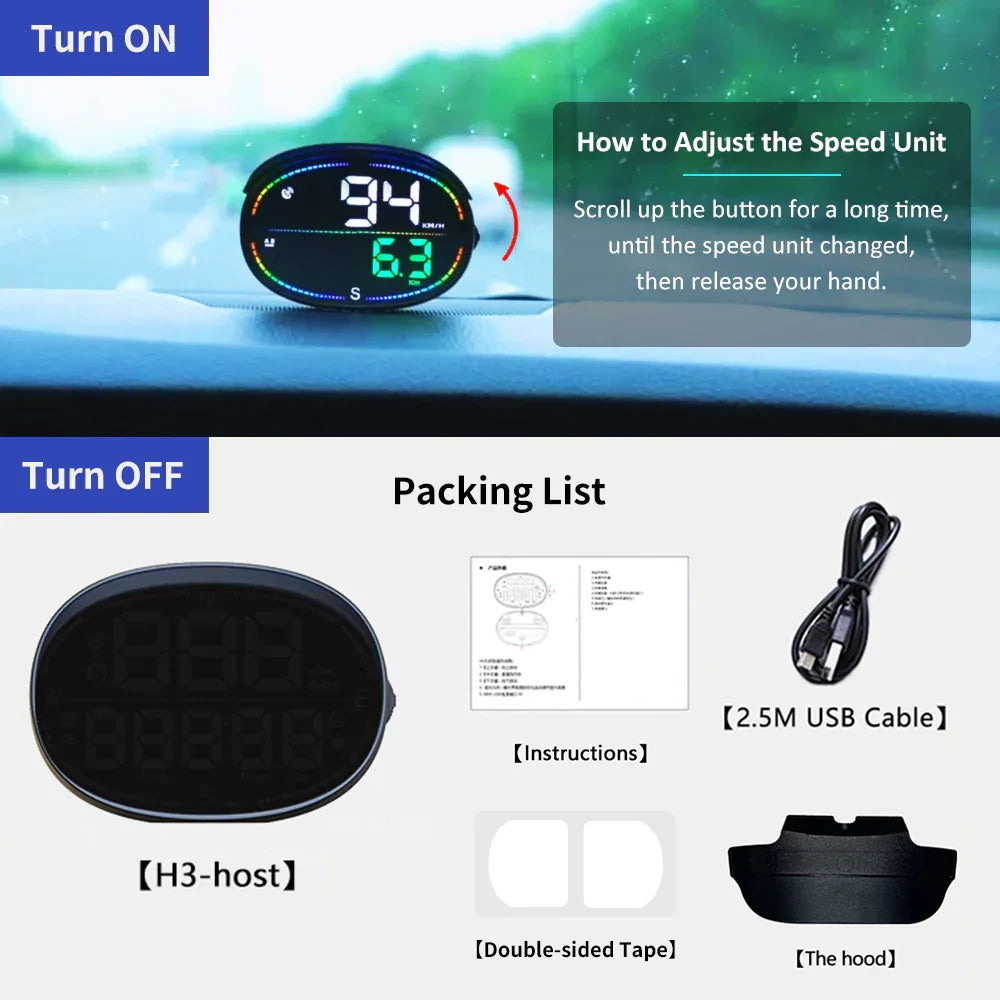
Installation Guide for H3 GPS Speedometer with Odometer
Thank you for purchasing the KUOWEIHUD H3 GPS Speedometer with Odometer. This guide is designed to help you install your new digital speedometer quickly, safely, and correctly. Please read through all instructions before beginning the installation to ensure optimal performance and safety.
How to Install
- Before installation, please drive your car to outdoor places, not in garages or indoors, and open your car window;
- Plug our provided USB cable into your car USB port, and plug the other end into your H3-Speedometer;
- Put it on the dashboard. After powering on, the LEDs will flash as it begins searching for satellite signals; wait one minute. Once the signal stabilizes, it will display the driving data.

How to Switch the Display Interface
Short press the button to switch the display interface
-

Interface 1
Speed + Time + Compass + Ambient Light
-

Interface 2
Speed + Time + Compass
-

Interface 3
Speed + Compass
-

Interface 4
Speed


System Settings
1. In the normal working state of H3-Speedometer, Long-press the button to enter into the settings interface;
2. Scroll Up/Down the button to select your desired function setting, there are 6 function settings for you to choose;
- 1. Timezone (Default 08: GMT+8)
- 2. Speed Alarm Limit (Default Value:150KM/H)
- 3. Brightness (Default: 0, Auto Brightness)
- 4. Speed Calibration (Default Value: 100)
- 5. Fatigue Driving Reminder (Default Value: 4 Hours)
- 6. Odometer Setting
3. Short press the button to confirm. Scroll Up/Down the button to adjust the value;
4. Short press the button to save it; Release your hand, it will automatically back to the main interface.
-
1. Timezone
- According to your local timezone,
- if your timezone is UTC-5, set it to -05,
- if your timezone is GMT+5, set it to 05.
-
4. Speed Alarm Limit
Default: 150 KM/H / MPH
-
3. Brightness
0: Auto Brightness (Default)
1: Dark
2: Middle
3: Bright
-
4. Speed Calibration
- Default: 100
- If car speed is 100, the HUD shows 103, set it to 97;
- If car speed is 100, the HUD shows 97, set it to 103;
-
5. Fatigue Driving Reminder
Default: 4 Hours, there are 0-9 hours for your choice.
-
6. Odometer Setting
Set the value from left to right, when the number flashed, scroll Left/Right the button to adjust the value, short press the button to save. (Max.Value: 999999 Miles/Kilometers)
FAQ
Does the Speed Gauge support switching between MPH and KM/H? How to change the speed unit?
- Yes, The speed unit can be switched between KM/H and MPH
- How to change the speed unit: Scroll up the button for a long time, until the speed unit changed, then release your hand.
How to adjust the time?
- Long-press the button to enter into setting interface;
- Scroll Up/Down the button to adjust it to 1;
- Short-press the button to confirm it;
- Scroll Up/Down the button to adjust the value ( According to your local timezone,if your timezone is UTC+5, set it to 05; if your timezone is UTC-5, set it to -05);
- Short-press the button to save it; Release your hand, it will automatically back to the main interface.
How to set the speed alarm limit?
- Long-press the button to enter into setting interface;
- Scroll Up/Down the button to adjust it to 2;
- Short-press the button to confirm it;
- Scroll Up/Down the button to adjust the value ( (Default:150);
- Short-press the button to save it; Release your hand, it will automatically back to the main interface.
How to adjust the Car Speedometer brightness?
- Long-press the button to enter into setting interface;
- Scroll Up/Down the button to adjust it to 3;
- Short-press the button to confirm it;
- Scroll Up/Down the button to adjust the value (0 is auto brightness, 1 is the darkest, 2 is middle, 3 is the brightest);
- Short-press the button to save it; Release your hand, it will automatically back to the main interface.
How to calibrate the speed on HUD Speedometer? If the HUD speed is not consistent with the vehicle speed on the dashboard.
- Long-press the button to enter into setting interface;
- Scroll Up/Down the button to adjust it to 4;
- Short-press the button to confirm it;
- Scroll Up/Down the button to adjust the value(Default: 100). For example, If the vehicle speed is 100, the HUD shows 103, you can adjust the value to 97; If the vehicle speed is 100, the HUD shows 97, you can adjust the value to 103;
- Short-press the button to save it; Release your hand, it will automatically back to the main interface.
How to set the driving time limit?
- Long-press the button to enter into setting interface;
- Scroll Up/Down the button to adjust it to 5;
- Short-press the button to confirm it;
- Scroll Up/Down the button to adjust the value(Default: 4 hours, there are 0-9 hours for your choice.).
- Short-press the button to save it; Release your hand, it will automatically back to the main interface.
Tired of Glancing Down at Your Dashboard?
👇 👇 👇 Order Now 👇 👇 👇

H3 GPS Speedometer with Odometer for Car