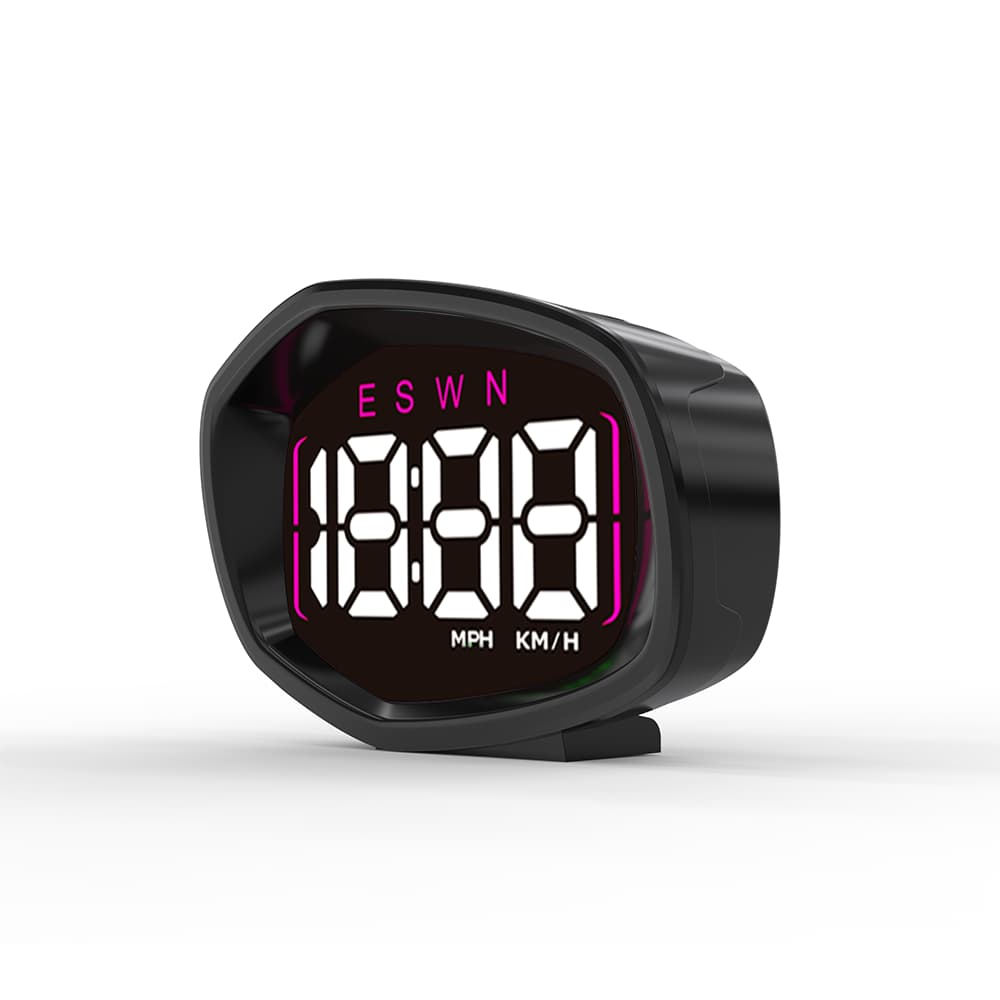
K3 GPS Speedometer Installation Guide: Setup & FAQ
Thank you for purchasing the KUOWEIHUD K3 GPS Speedometer with Clock. This guide is designed to help you install your new digital speedometer quickly, safely, and correctly. Please read through all instructions before beginning the installation to ensure optimal performance and safety.
How to Install
- Plug the USB power cable into your vehicle USB port (DC 5V), the other end connect to the K3-Speedometer;
- Place speedometer on dashboard;
- Wait for GPS signal → Drive.
Tips:
- Before installation, please drive the car to an open outdoor area with strong GPS signal.
- Use our original OEM power cable for stable regulated voltage; third-party cables may cause startup failure.

How to Switch the Display Interface
Short press the 【 M 】 button to switch the display interface
-

Interface 1
Speed / Time + Compass + Ambient Light
-
Interface 2
Speed / Time + Compass
-

Interface 3
Speed / Time


System Settings
1. In the normal working state of K3-Speedometer, Long-press the M button to enter into the settings interface;
2. Press the Left/Right thebutton to select your desired function setting, there are 5 function settings for you to choose;
- -1. Timezone
- -2. Speed Alarm Limit (Default Value:150KM/H)
- -3. Brightness (Default: 0, Auto Brightness)
- -4. Speed Calibration (Default Value: 100)
- -5. Display Mode (Default Value: 0 Auto Mode)
3. Short press the M button to confirm. Press the Left/Right button to adjust the value;
4. Short press the M button to save it; Release your hand, it will automatically back to the main interface.
-
-1. Timezone
- According to your local timezone,
- if your timezone is UTC-5, set it to -05,
- if your timezone is GMT+5, set it to 05.
-
- 2. Speed Alarm Limit
Default: 150 KM/H / MPH
-
- 3. Brightness
0: Auto Brightness (Default)
1: Dark
2: Middle
3: Bright
-
- 4. Speed Calibration
- Default: 100
- If car speed is 100, the HUD shows 103, set it to 97;
- If car speed is 100, the HUD shows 97, set it to 103;
-
- 5. Display Mode
0: Auto (Default) : Show speed when driving, show time when parking.
1: Speed
2: Time
FAQ
Does the Speed Gauge support switching between MPH and KM/H? How to change the speed unit?
- Yes, The speed unit can be switched between KM/H and MPH
- How to change the speed unit: Long press the M button, until the speed unit changed, then release your hand.
How to adjust the time?
- Long-press the M button to enter into setting interface;
- Press the Left / Right button to adjust it to 1;
- Short-press the M button to confirm it;
- Press the Left / Right button to adjust the value ( According to your local timezone,if your timezone is UTC+5, set it to 05; if your timezone is UTC-5, set it to -05);
- Short-press the M button to save it; Release your hand, it will automatically back to the main interface.
How to set the speed alarm limit?
- Long-press the M button to enter into setting interface;
- Press the Left / Right button to adjust it to 2;
- Short-press the M button to confirm it;
- Press the Left / Right button to adjust the value ( (Default:150);
- Short-press the M button to save it; Release your hand, it will automatically back to the main interface.
How to adjust the Car Speedometer brightness?
- Long-press the M button to enter into setting interface;
- Press the Left / Right button to adjust it to 3;
- Short-press the M button to confirm it;
- Press the Left / Right button to adjust the value (0 is auto brightness, 1 is the darkest, 2 is middle, 3 is the brightest);
- Short-press the M button to save it; Release your hand, it will automatically back to the main interface.
How to calibrate the speed on HUD Speedometer? If the HUD speed is not consistent with the vehicle speed on the dashboard.
- Long-press the M button to enter into setting interface;
- Press the Left / Right button to adjust it to 4;
- Short-press the M button to confirm it;
- Press the Left / Right button to adjust the value(Default: 100). For example, If the vehicle speed is 100, the HUD shows 103, you can adjust the value to 97; If the vehicle speed is 100, the HUD shows 97, you can adjust the value to 103;
- Short-press the M button to save it; Release your hand, it will automatically back to the main interface.
Upgrade Your Dashboard?
👇 👇 👇 Order Now 👇 👇 👇

K3 Digital GPS Speedometer with Clock for Car